How to watch the Live Stream
This event will be hosted remotely via Teams Live. There are several differences between a Teams meeting and a Teams Live Event. Below are a few reminders for attending Teams Live events:
- Attendees must use the webinar link to join the live event; there is no dial-in information for this event
- You don't have to use VPN to view the broadcast
- If you're logging in before the session has started, you may just see a blank screen. The session should start right on time, so just wait for the presenter to begin the session
- If you're still seeing a blank screen after the start time of the session, you may need to log out and log back in to view the event
- If viewing from a mobile device, you will need to first download the Teams app to join the meeting.
- Viewing from your mobile device will use a large amount of your cellular data if you're not connected to Wi-Fi
- The webinar stream runs on a slight delay from presenters to attendees (the amount of the delay depends on attendee connectivity)
- Teams Live meetings are not interactive, and you will not be able to unmute, but you can use the Q&A function to submit a question
- If you do leave the event screen, the video will pause; to resume, click play
- Clicking on the meeting screen will pause the video feed; to resume, click the screen again to play
- Please do not view this meeting while operating a motorized vehicle
Teams Live Access Help
If, upon clicking the access link for the session and entering your information, you receive the below error message, please following the following steps:

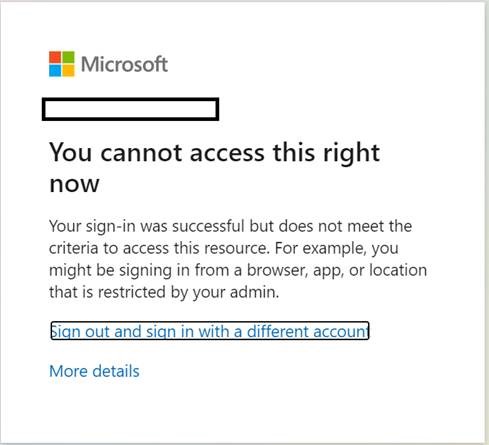
- Please call/email your dealer IT support and ask them to allow the event session direct link(s) to be allowed to bypass your firewall
- Upon confirmation from your IT team, please close the window and re-attempt access. You should now be able to log in.
- If this does not work, please re-attempt access, and instead choose to access anonymously. You should now be able to enter the session, but your attendance will need to be manually counted. In order to do so, please email fenton_erin@cat.com so that she can manually add you to the attendee list.
If you are still having issues or have any questions, please reach out to fenton_erin@cat.com directly for further assistance.